Manage team members
Owners of a team can invite new people, manage pending invitations, adjust roles and remove team members again.
There is no limit on the number of team members or on the number of people per role. To invite further members, a payment method must be set up for the team.
Prerequisites
- Access to the ccloud³ interface
- Role Eigentümer (owner) in the team
- A payment method set up for the team
1. View team members
If you are not currently working in the team you want, click your profile icon in the top right-hand corner, select Team wechseln (switch team) and then the team.
Then click the profile icon again and select Team Einstellungen (team settings). In the Team tab, you will find the Team Mitglieder (team members) section further down.
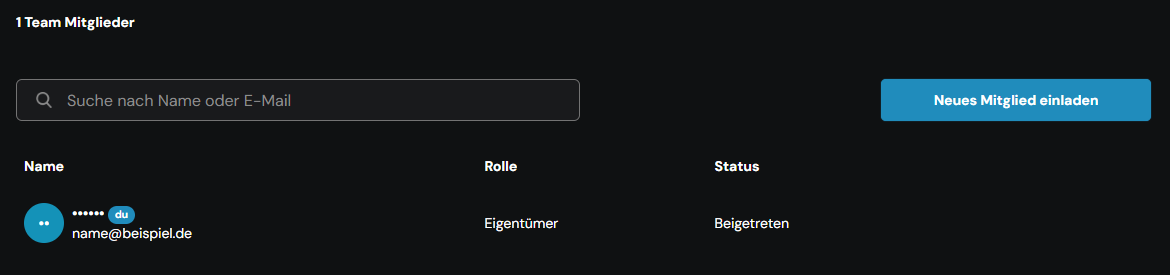
The overview shows Name, Rolle (role) and Status for each member. You can use the search field to filter by name or email address. Members who have accepted their invitation have the status Beigetreten (joined); pending invitations have the status Ausstehend (pending).
2. Invite new team members
In the Team Mitglieder section, click Neues Mitglied einladen (invite new member). The Neue Mitglieder einladen (invite new members) window opens.
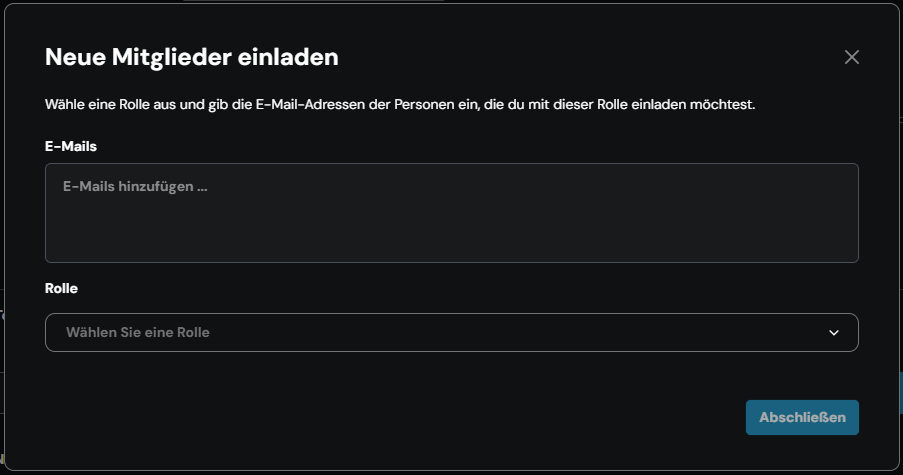
In the E-Mails field, enter the addresses of the people you want to invite. Under Rolle, select the role these people should have in the team. An overview of all roles is available under Roles in a team.
Click Abschließen (finish) to send the invitations by email. The invited people appear in the overview immediately with the status Ausstehend.
The role Eigentümer (owner) can only be assigned after the person has joined the team with a different role. Invite new owners with another role first and change the role afterwards.
3. Change a team member's role
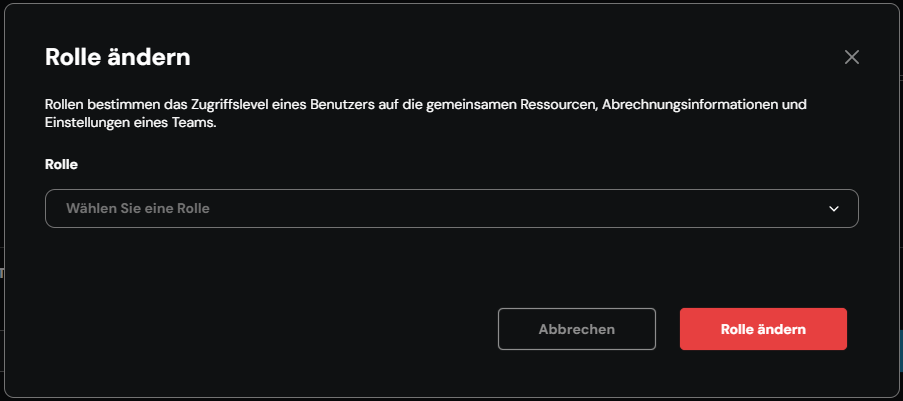
Click Mehr (more) at the end of the member's row and select Rolle ändern (change role). This is also possible for invitations with the status Ausstehend.
In the Rolle ändern window, select the new role under Rolle and confirm with Rolle ändern.
4. Remove team members or withdraw invitations
Click Mehr at the end of the row and select Mitglied entfernen (remove member). You withdraw a pending invitation in the same way.
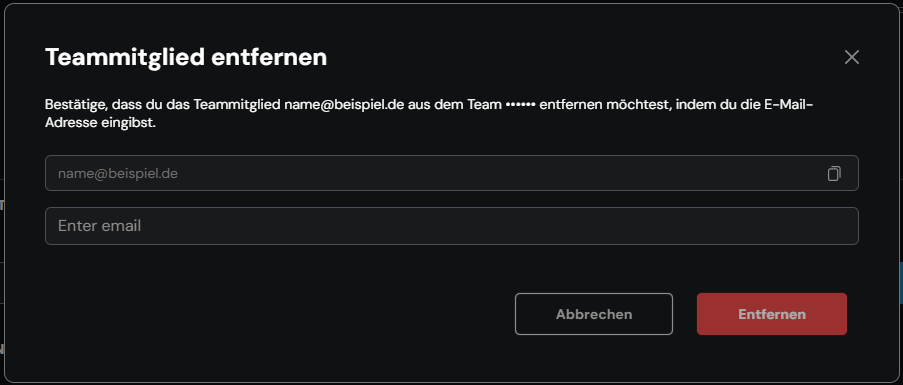
In the Teammitglied entfernen (remove team member) window, enter the member's email address to confirm and click Entfernen (remove).
The member then loses access to the team in ccloud³ and via the API.