Enforce two-factor sign-in for teams
Owners can make secure sign-in mandatory for their team. Once two-factor sign-in is active, only team members who sign in with a secure method – via Google, GitHub or a centron account with two-factor authentication (2FA) enabled – can access the team.
The setting can be enabled for existing teams at any time.
Prerequisites
- Access to the ccloud³ interface
- Role Eigentümer (owner) in the team
1. Enable two-factor sign-in
First switch to the team you want: click your profile icon in the top right-hand corner, select Team wechseln (switch team) and then the team.
Then open Team Einstellungen (team settings) via the profile icon. In the Team tab, you will find the row Zwei-Faktor-Anmeldung (two-factor sign-in) with its current status, for example Deaktiviert (disabled). Click Aktivieren (enable).

In the Zwei-Faktor-Anmeldung aktivieren window, confirm with Zwei-Faktor-Anmeldung aktivieren.
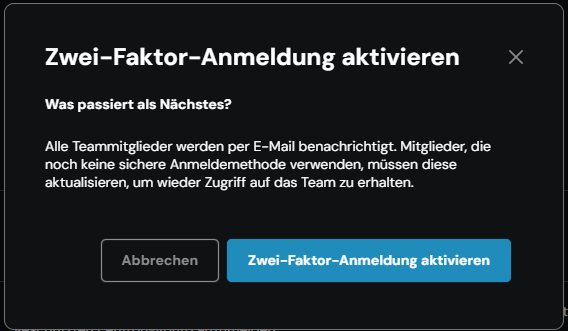
All team members are notified by email. Members who do not yet use a secure sign-in method must set one up to regain access to the team. This also applies to your own account.
Inform your team members in advance so that nobody loses access unexpectedly. To learn how to set up 2FA for your own account, see Manage 2FA.
2. Disable two-factor sign-in
Owners can lift the secure sign-in requirement at any time. You will find the setting in the same place in Team Einstellungen, in the row Zwei-Faktor-Anmeldung.
After it has been disabled, team members can use the team again with a centron account without two-factor authentication.