Manage 2FA
If you are using Google or GitHub OAuth, there is no section for two-factor authentication, as you do not use a username and password for your centron account.
Instead, we strongly recommend that you enable two-factor authentication for the Google or GitHub account you use to log in to centron.
If you wish to enable two-factor authentication for your centron account, you must select your second factor.
Selecting the second factor
When you click the ‘Set up 2FA’ button, you will need to choose a second factor: either an authentication app or SMS.
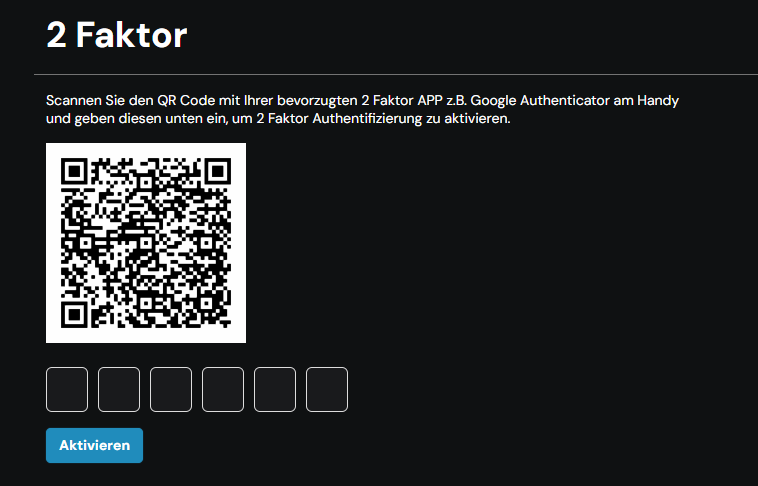
You will then be shown the following step when you log in:
Using an app (preferred)
Authenticator apps such as Google Authenticator, Authy, 1Password, Microsoft Authenticator and Duo are small, free mobile applications that generate security codes. They work worldwide and are more secure than text messages, as they do not transmit the security codes over the network.
If you choose this method, you will need to scan the QR code provided using the Authenticator app on your phone or tablet. This will link your device to your centron account.
If you are unable to scan the QR code, click on the ‘Try this instead’ link directly below it to obtain a numeric code that you can enter manually. Follow the instructions in your specific authenticator app to enter the code, then enter the PIN provided by the app. Once you have entered the correct PIN, the app will be linked to your centron account.
Once your centron account and the 2FA app have been linked, when you log in to centron you will need to open the selected app and enter the code provided in the Control Panel to complete the login process.
Some authenticator apps offer features such as backups and synchronisation to make it easier for you to access the app should you lose your device. We recommend using these features for added reliability.
Authenticator app
You can also use an authenticator app such as Google Authenticator or Duo as a backup solution. However, we do not recommend this, as it is a mobile-based method and can only be selected as a backup option if you choose SMS as your primary 2FA solution. If, in a scenario where you cannot access your text messages and need to use a backup method, your mobile phone may not be a viable option, we recommend using an authenticator app as your primary 2FA method with backup codes.
Disabling two-factor authentication
You can disable 2FA on the ‘My Account’ page. To do this, click on the profile icon in the top right-hand corner of the control panel.
In the menu that appears, click on ‘Manage account’ to go to your ‘My Account’ page, and look for the ‘Two-factor authentication’ section.
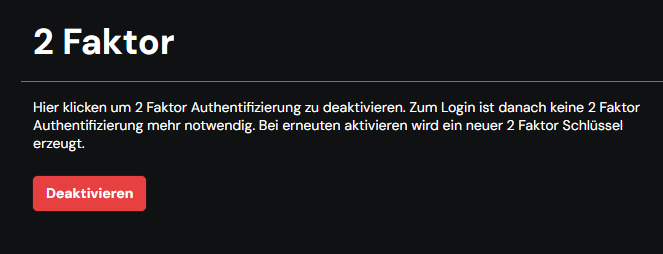
Click the ‘Disable 2FA’ button to disable two-factor authentication.
Changing the Authenticator App
If you have enabled 2FA for your account and are using an authenticator app, you can change the app you are currently using to authenticate your centron account at any time. To do this, deactivate 2FA under ‘My Account’ and then reactivate it using your new authenticator app.
To change your authenticator app, follow the steps above to first disable 2FA for your account and then re-enable 2FA using your preferred authenticator app.