Manage account settings
In accordance with centron’s Terms of Use, the registration of accounts for addresses in countries subject to OFAC sanctions is prohibited.
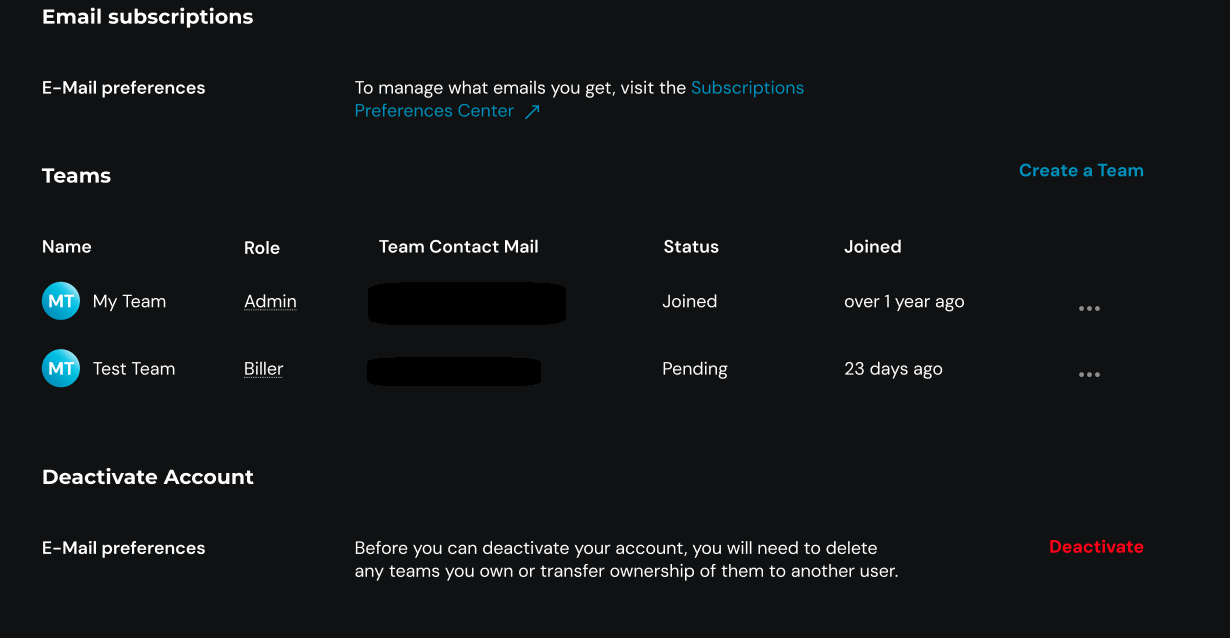
Via the Account Settings on centron, you can, as usual, edit your information and settings. These include your name, password, login method, two-factor authentication, email subscriptions, team memberships and the option to deactivate your account.
The glossary below provides a more detailed explanation of the various sections of account management:
Settings
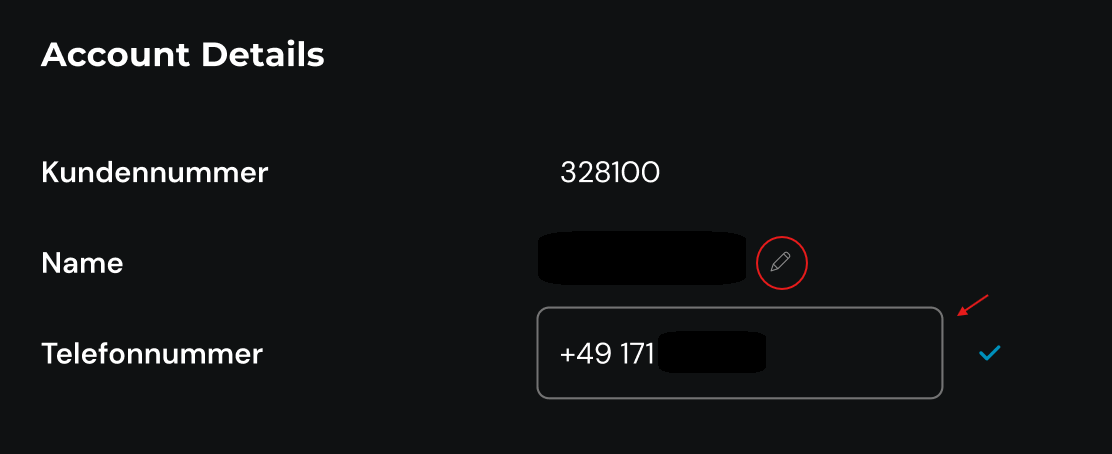
Within this section, you can view your customer number and the name under which this account is registered and displayed in the dashboard. To change your username, click on the pencil icon on the right. You’ll also find the phone number linked to your account here, and the option to update it. The same applies to your email address.
Teams
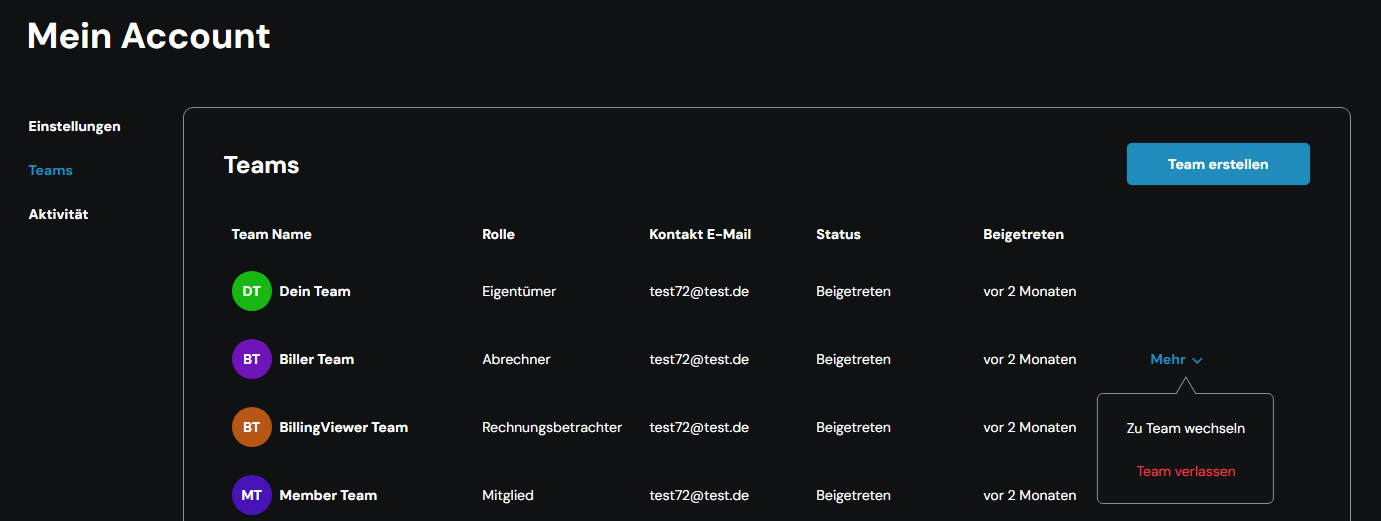
In this section, you can view all the Teams Teams you have joined or been invited to. You can also use this section to join or leave a team, or even create a new one.
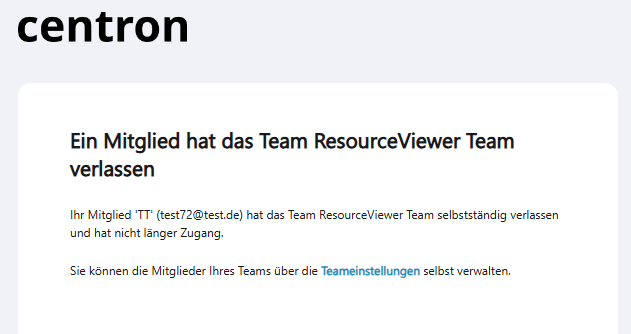
If you or another user leaves a team, the relevant team owner will receive a notification about this action.
Authentication
In the Authentication section, you can also change the method you use to log in to your centron account at a later date. The available options are:
-
Email address and password
-
Google OAuth
-
GitHub OAuth
If you are currently using OAuth and wish to switch to a different account with the same provider, you will need to temporarily switch to a different sign-in option and then switch back in order to select a different account.
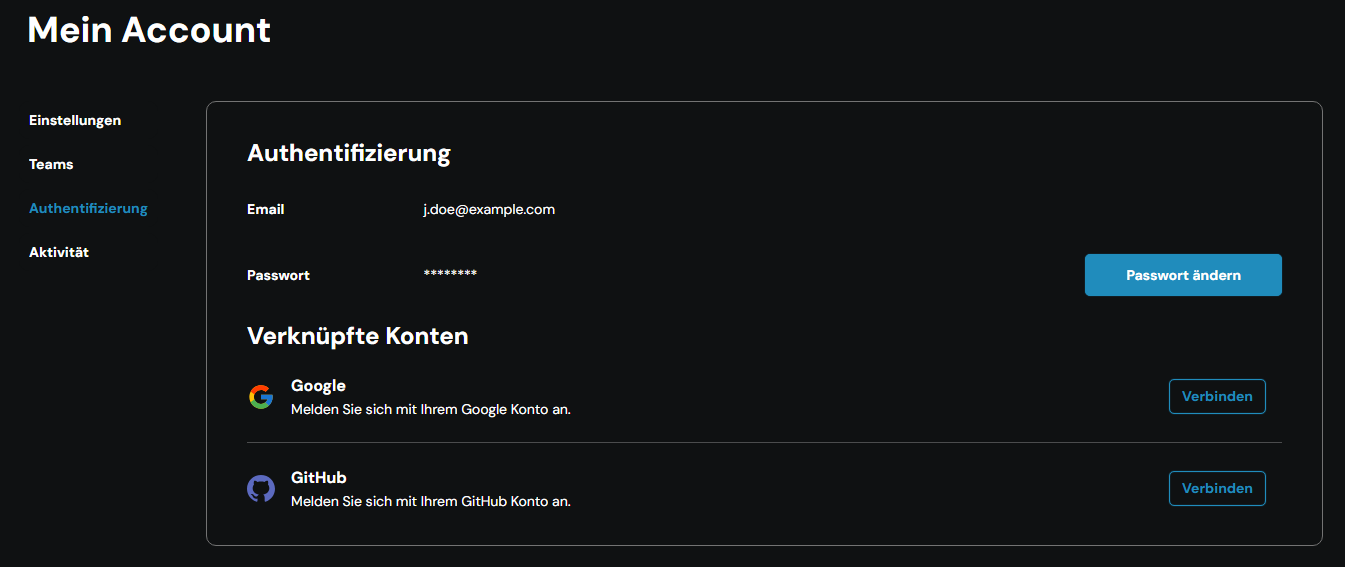
When using GitHub SSO, the email addresses on your GitHub account and your centron account must match. If you wish to change your GitHub email address, you must first change your centron email address. Otherwise, you will not be able to log in to centron using GitHub SSO.
Change password
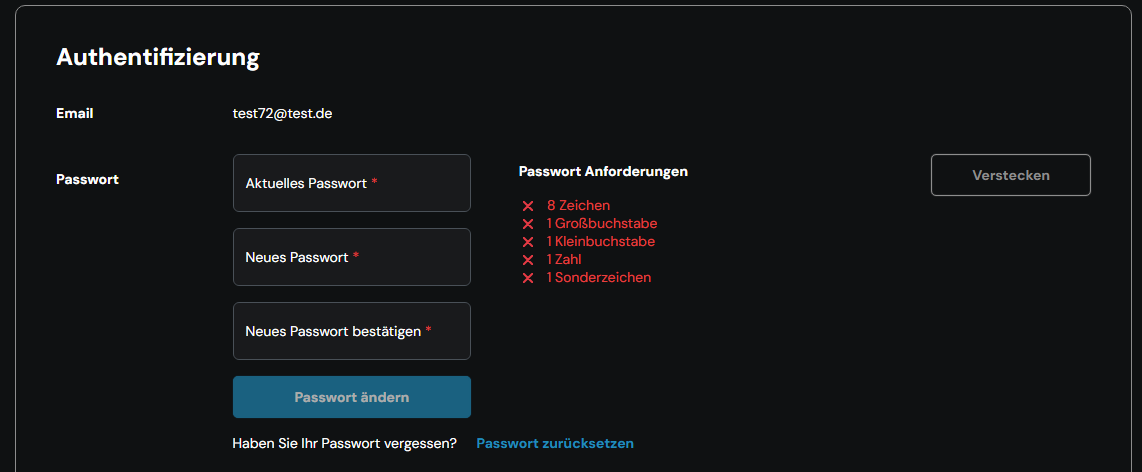
For security reasons, your password is not displayed in the overview. To change your password, click on the blue button: Change password. To successfully change your password, please follow the instructions in the input fields and ensure your new password meets the minimum security requirements, then confirm your changes by clicking: Change password. If you have forgotten your current password, you can also find the Reset via email option here, below the input form.
Two-factor authentication (2FA)
When you log in to centron using your email address and password, the Two-factor authentication section allows you to enable or disable 2FA. To do this, click on Set up 2FA on the right-hand side of the same page. Enabling 2FA provides an extra layer of security for your account by requiring you to enter a code alongside your username and password when logging in. You can have this code generated by an authentication app or receive it via text message.
Deactivate account
In the Deactivate Account section, you can close your account and delete all your account details, including email addresses and payment information.
Before you deactivate your account, you must sort out your team memberships and settle any outstanding invoices. Further information can be found in the documentation section on account deactivation.