Deactivate Account
The following process for deactivating your account sets out the steps you need to take to deactivate your centron account.
Account deactivation
You can deactivate your account from the ‘My Account’ page. To access the ‘My Account’ page, click on the profile icon in the top right-hand corner of the control panel. In the menu that opens, click on ‘Manage account’.
On the ‘My Account’ page, scroll down to the ‘Deactivate account’ section.
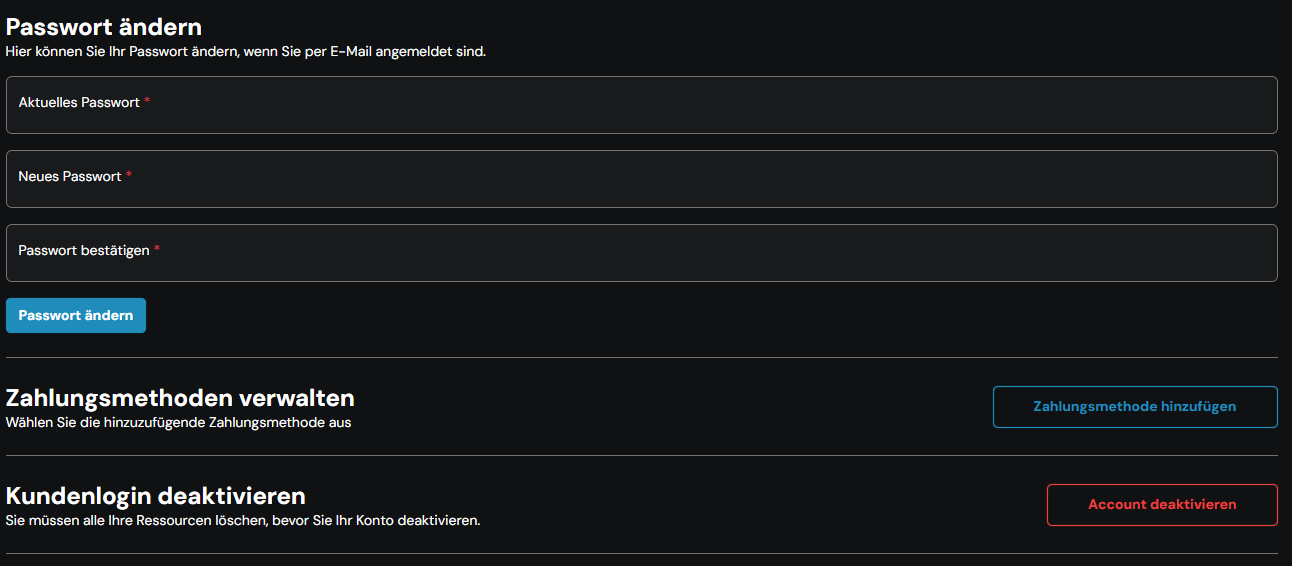
Click on ‘Deactivate account’. If you are the sole owner of a Teams, you will be redirected to the ‘Before deactivation’ page, which lists all the steps you need to take before deactivating your account. These include, amongst other things, deleting team resources and deleting or transferring ownership of Teams.
Once you have resolved any issues, click the ‘Refresh’ button to view your progress. As soon as your account is ready to be deactivated, the ‘Refresh’ button will change to ‘Deactivate my account’.
Select your option and then click on "Deactivate account". Your account will then be deactivated immediately. You will be redirected either to a page to reactivate your account (if you have not deleted your data) or to the login page (if you have deleted your data). There you will find a link to a survey where you can tell us how we could have helped you better. We will use your feedback to improve the platform.