Add and remove SSH keys
SSH keys allow a more secure sign-in to your servers than a password alone. To use them, add your public key to the team.
Prerequisites
- Access to the ccloud³ interface
- An SSH key pair (public and private key)
1. Add an SSH key
If necessary, switch to the team you want via the profile icon in the top right-hand corner and Team wechseln (switch team). Then open Team Einstellungen (team settings) via the profile icon and select the Sicherheit (security) tab.
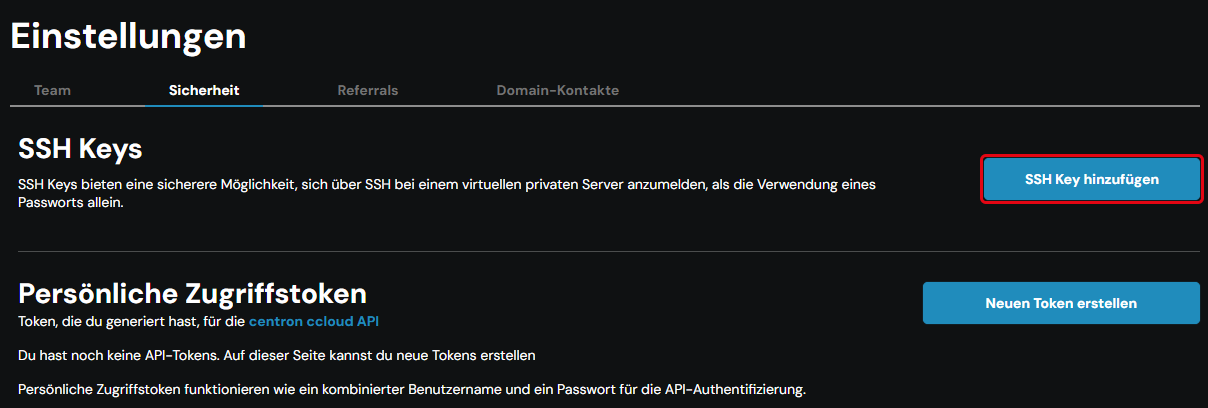
In the SSH Keys section, click SSH Key hinzufügen (add SSH key).
In the SSH Key hinzufügen window, fill in two required fields:
- Key Name: a meaningful name by which you will recognise the key later – for example the name of the computer the key comes from.
- Public Key: the content of your public key file (extension
.pub).
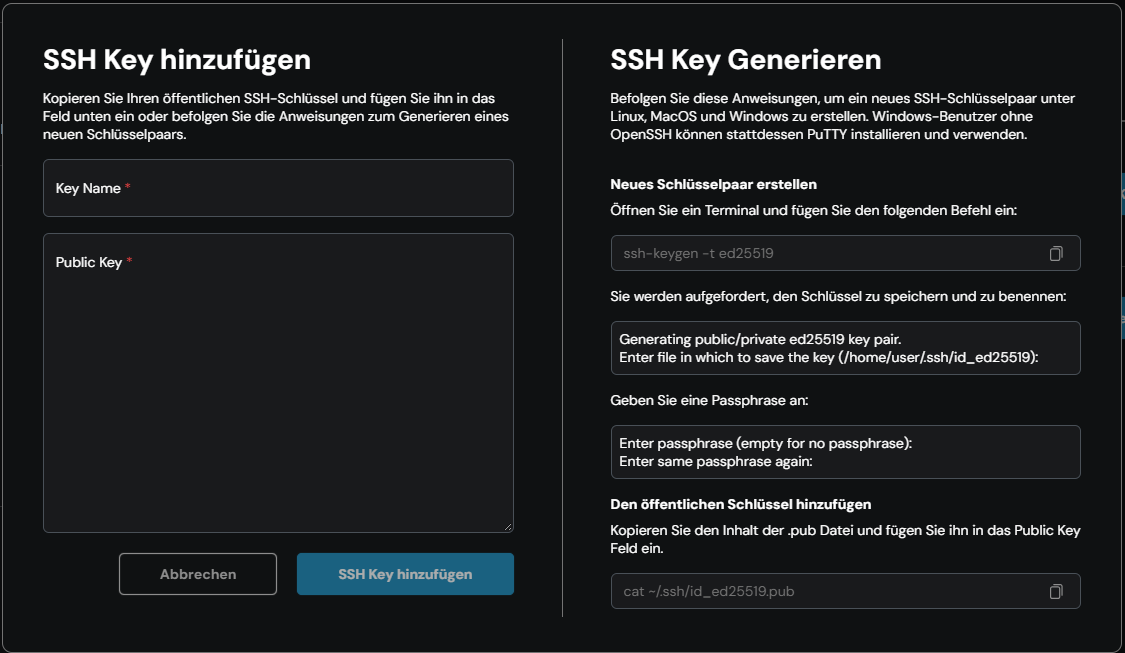
Click SSH Key hinzufügen to save the key in the team. The key then appears in the list with Name and Fingerprint.
You can share public SSH keys without concern: a private key cannot be derived from them.
No key pair yet?
In the SSH Key hinzufügen window, under SSH Key Generieren (generate SSH key), you will find instructions on how to create a new key pair on Linux, macOS and Windows. Windows users without OpenSSH can use PuTTY instead.
Cannot find your key pair?
By default, SSH keys are stored in the hidden .ssh folder in your user directory.
Typical locations of the public key:
- Linux:
/home/<username>/.ssh/id_ed25519.pub - macOS:
/Users/<username>/.ssh/id_ed25519.pub - Windows:
C:\Users\<username>\.ssh\id_ed25519.pub
If you created your key pair with PuTTYgen, use PuTTYgen to display the public key in the correct format.
2. Remove an SSH key
Open Team Einstellungen and select the Sicherheit tab. The SSH Keys section lists all keys assigned to the team with Name and Fingerprint.
Click the bin icon at the end of the row. In the SSH Key löschen (delete SSH key) window, enter the name of the key to confirm and click SSH Key löschen.
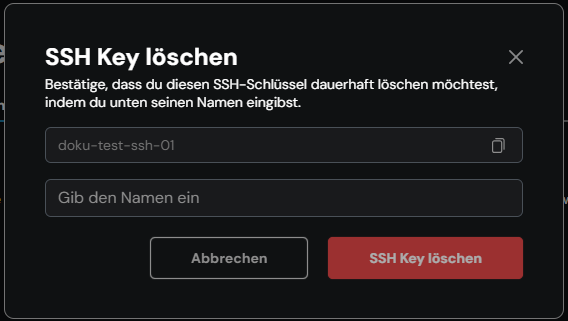
Deletion is permanent. If you want to use the key again later, you have to add it again.