Manage access
Find out how to securely manage access to centron and S3 Object Storage, create and rotate access keys, and control access via centron and Teams.
Create new access keys
To add further access keys for your bucket, navigate to your bucket. To add further access keys, click the Generate Access Key button. Your new access key has now been added.
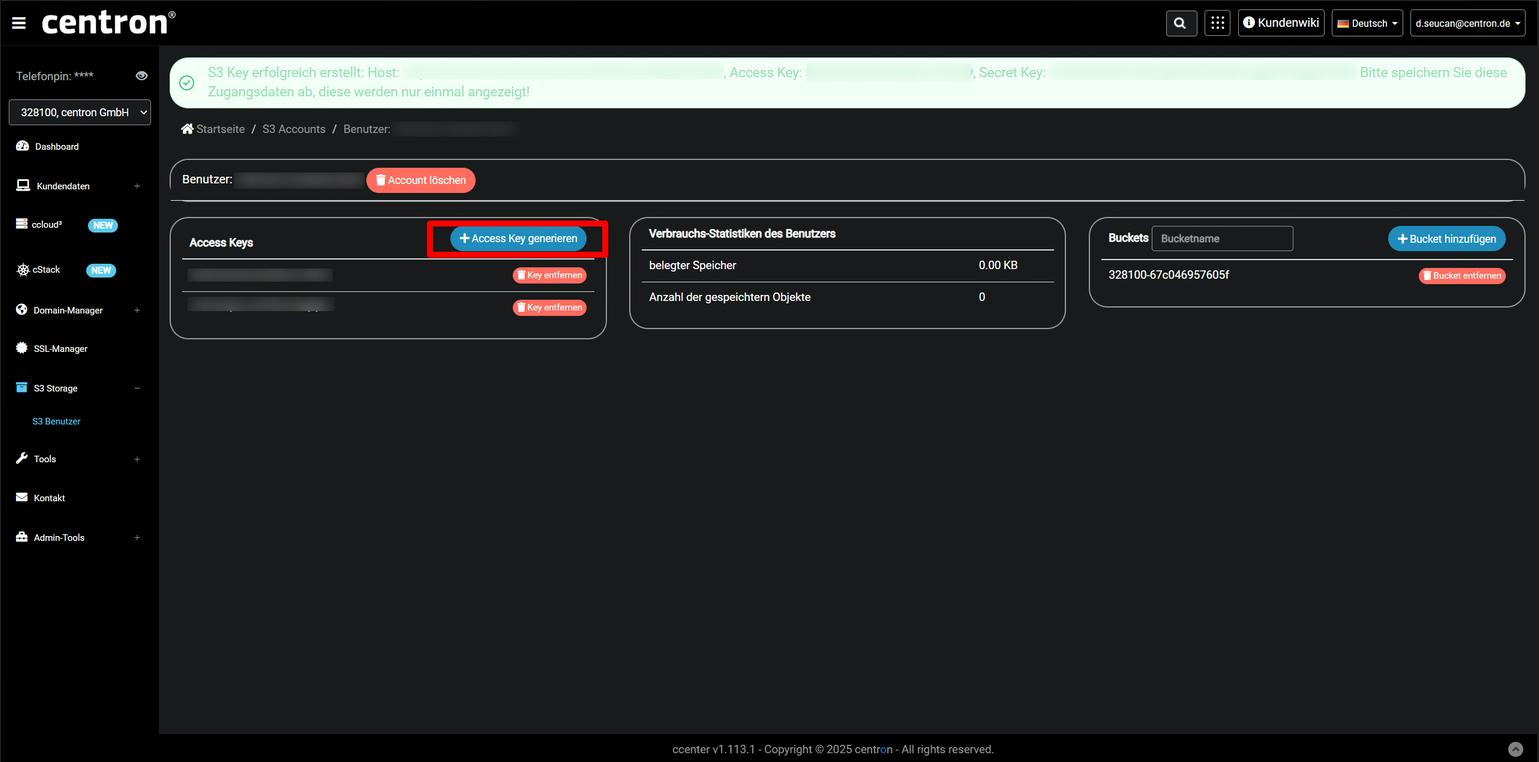
To ensure that you do not lose your access keys, your login details will also be sent to you by email.
We recommend that, after creating your bucket, you generate new access keys and then delete the first key pair that was generated when the bucket was created.
Owners of centron and S3 Object Storage buckets can create, delete and view all content in all buckets within an account. They also make decisions and manage what others can see. If an owner wishes to allow one or more people to co-manage buckets, there are two options: access keys and centron Teams.
Access keys enable individuals or programmes to connect to buckets using third-party clients and the API, but do not provide access to the Control Panel or other centron resources.
You can create an unlimited number of keys for your account. This allows you to generate unique key pairs for each person or programme, so that you can revoke access in the future if necessary without affecting other users. To do this, simply remove the keys or reset the secret.
To generate centron and S3 Object Storage access keys, click on ‘API’ in the control panel.
Navigate to the centron S3 Object Storage Keys tab and select Generate New Key. A text box in the centron S3 Object Storage Access Keys section will open. Name the key so that you can identify who or what is using it. Then click the tick.
The text field for naming a new key
Once you have named the key, you will see the access key and, on the next line, the secret key. This is the only time the secret key will be displayed. Copy it straight away and keep it in a safe place.
Access keys with a visible secret
If a secret is lost, forgotten or compromised, you can open its More menu, click Edit and select ‘Regenerate token’ to create a new secret. If you regenerate a secret, all scripts or clients using that key must be reconfigured to use the new secret value.
Share access to the Control Panel with Teams
centron and Teams, similar to centron and S3 Object Storage access keys, allow members to create, manage and delete buckets linked to the team account via the Control Panel’s web interface. Members can also create, delete and regenerate access keys for buckets. However, unlike centron and S3 Object Storage access keys, members with a Teams can also access other team resources such as ccloud³ VMs, firewalls and more.
As buckets cannot be transferred directly between accounts, we recommend that you create the team first and then the buckets. To grant one or more people access to jointly manage buckets via the Control Panel, open the user menu. Select ‘Create a team’ and follow the setup steps.
Once a user has joined the Teams, they can manage buckets via the web interface and generate their own keys for the API or third-party clients.