Connect via the console
The ccloud³ VM console at centron offers a browser-based way to access your ccloud³ VMs, similar to the Droplet Console at DigitalOcean. Instead of using SSH in a local terminal, you can use the ccloud³ VM console in your preferred web browser.
The ccloud³ VM console offers a native-like terminal experience, allowing you to run commands on your VM via a familiar command-line interface. It also enables one-click SSH access to your VM without the need for a password or manual SSH key configuration.
Prerequisites
The ccloud³ VM console is available at no extra cost for VMs that meet the following requirements:
- Supported operating system:
-
The VM must be running a supported operating system.
-
All Linux distributions provided by centron are supported: Ubuntu, Debian, CentOS and Fedora. This also includes all marketplace images based on these distributions.
- Firewall configuration:
-
Your cloud firewall and all host firewalls must accept SSH traffic on the port used by the SSH daemon (sshd).
-
If one of your firewalls is blocking SSH traffic on the port on which the SSH daemon is running, you will need to reconfigure its rules so that incoming SSH connections on that port are accepted.
Using the ccloud³ VM console offers a convenient and secure way to manage your VMs without having to worry about complex SSH key configurations or terminal set-ups. It is a useful tool, particularly for users who prefer a simpler, web-based interface for interacting with their servers.
To access the ccloud³ VM console on centron – similar to the Droplet Console on DigitalOcean – follow these steps:
- Access via the centron Control Panel:
- Log in to the centron control panel.
- Select VM:
- Click on the name of the ccloud³ VM you wish to access to expand the details pane. Then click on the name again to go to the VM’s details page.
- Open access area:
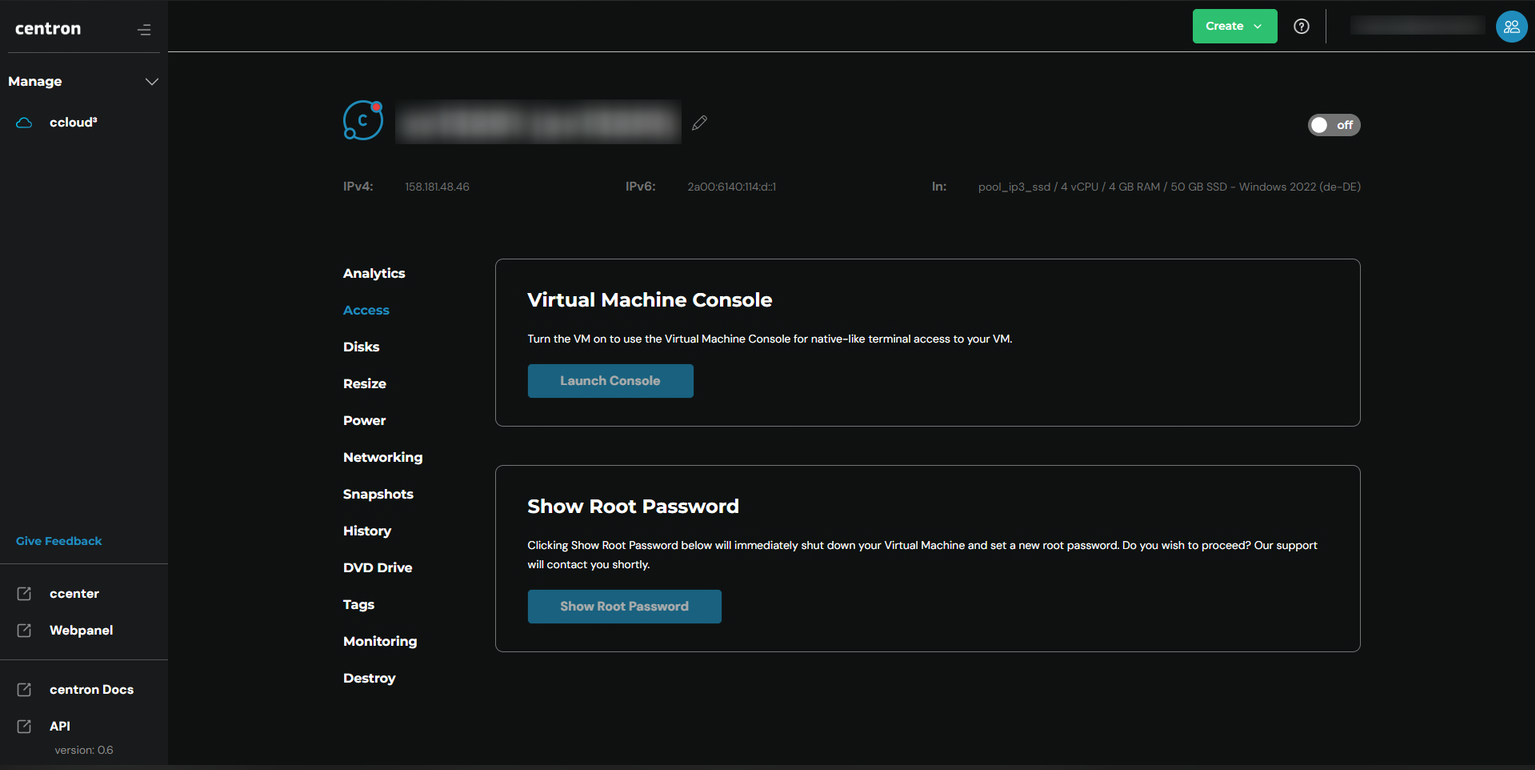
- On the details page for your ccloud³ VM, click the ‘Access’ tab in the left-hand menu.
- Launch the ccloud³ VM console:
- In the "ccloud³ VM Console" section, enter the user you wish to log in as in the "Log in as…" field. By default, this is set to “root”. Once you have selected a user, click “Launch ccloud³ VM Console” to open the console.
- Execute commands:
- Once the console has loaded, you can use the command line to run commands on your ccloud³ VM.
-
Ensure that the necessary firewall settings are configured correctly to allow access to the ccloud³ VM console.
-
The ccloud³ VM console is a useful tool for quick access or for situations where SSH is not available. It offers a simple and intuitive way to manage your VMs.