Add a domain
Find out how to add a domain in centron: create a domain contact, place an order and complete all the relevant domain fields correctly.
Create a contact
Before you order a domain, you must create a domain contact. To do this, you need to access the user interface.
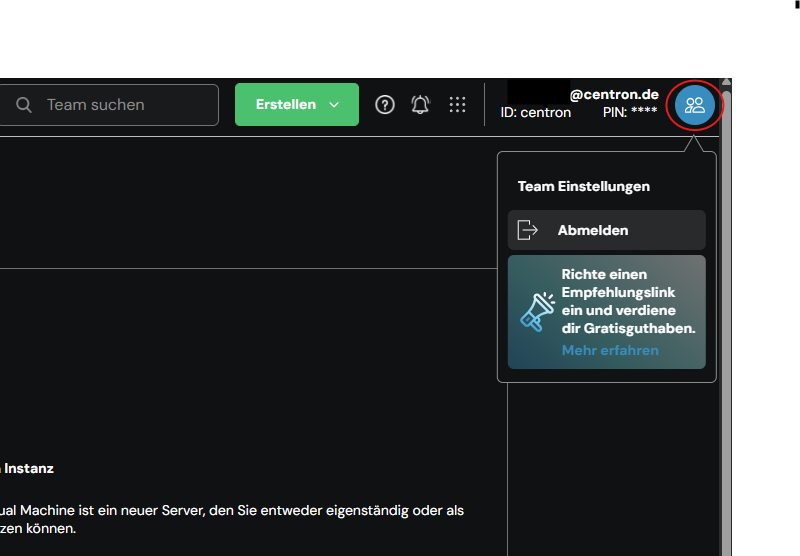
You can do this by clicking on your user profile in the top right-hand corner and selecting Team settings.
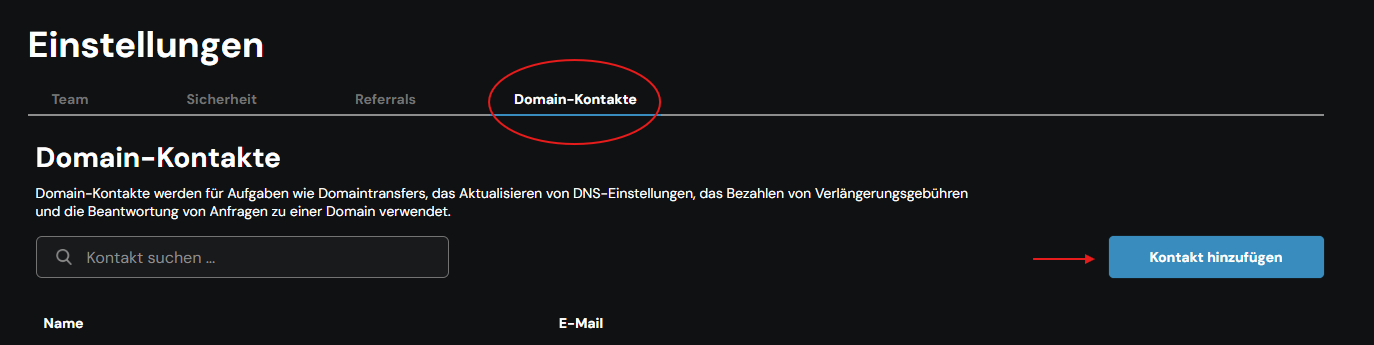
Go to the ‘Domain Contacts’ section here and then select Add Contact.
An input form will then open, in which the required fields must be completed. It is also possible to provide further details – company details can be entered via the ‘Advanced Options’.
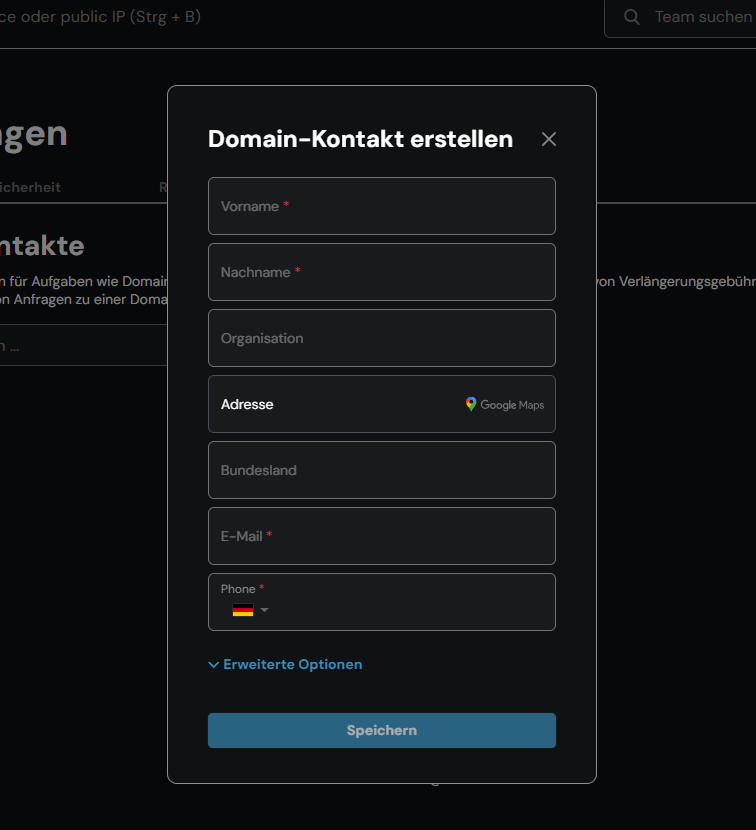
Click Save to complete the process; the domain contact you have created will now appear in the general overview. You can also edit or delete it there at a later date.
Placing an order
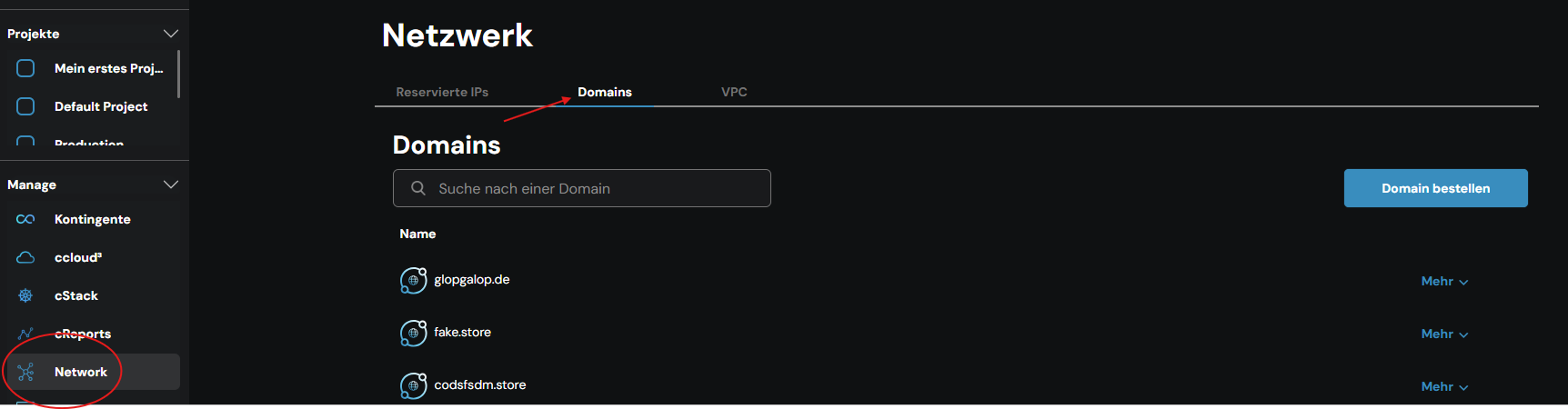
If your account has a domain contact, you can place an order for a domain. You will find the button for this in the Network → Domains section. Click on the blue ‘Order domain’ button there to start the process.
Please provide details of the domain by filling in the fields in the following screens. Start by entering the relevant domain. In our example below, this is: ‘hallobeispiel.de’.
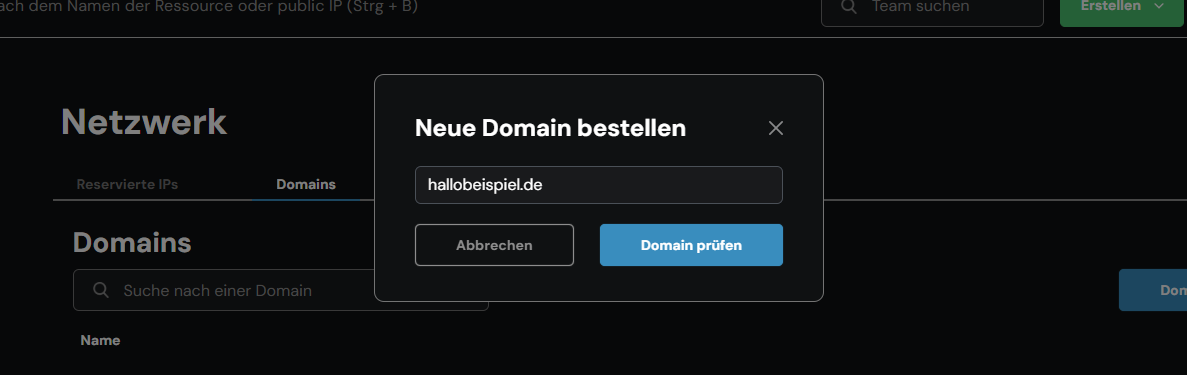
The domain check below displays the monthly price straight away. When you select the correct price, the ‘Check’ button changes to ‘Order now’. Once you’ve clicked this, the summary will appear.
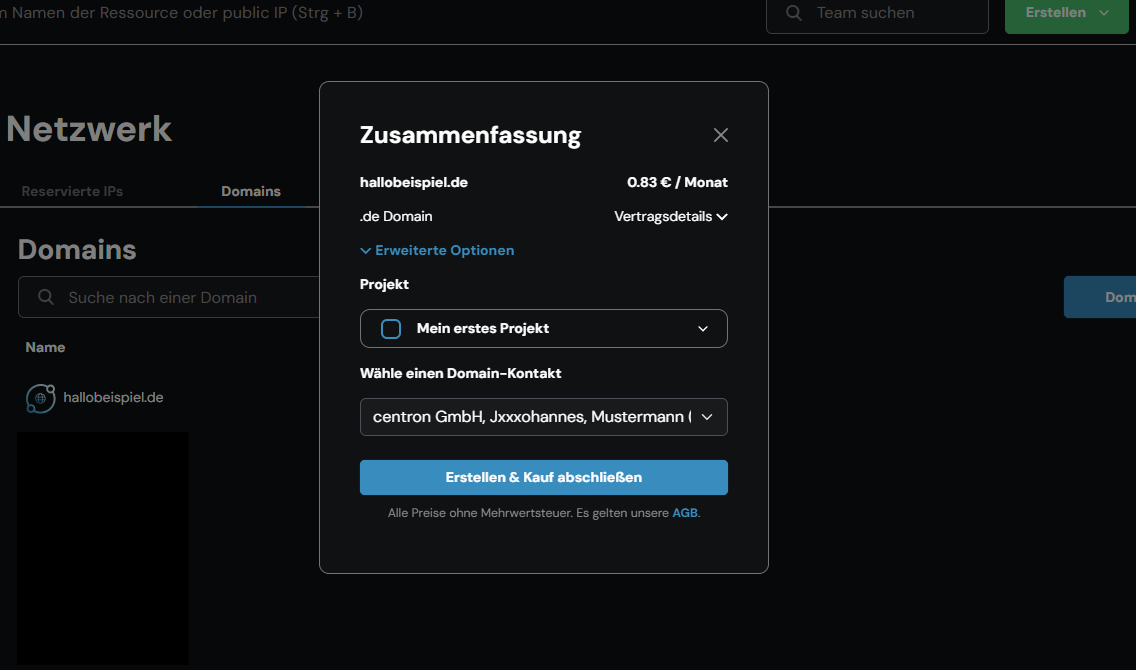
This provides you with information on the monthly costs, contract details, the option to assign the domain to a specific project, and the ability to enter the relevant domain contact details. By clicking on »Create & Complete Purchase«, you have successfully added a domain to your ccloud account.