Managing & creating DNS records
Find out how to manage DNS records in general with centron, and how to configure CAA records to specify which certification authorities are permitted to issue SSL/TLS certificates for your domain.
Creating, Updating & Deleting Entries
The feature to create, edit or delete DNS records directly via the domain management panel is not yet available. At present, you must still manage the DNS records via the Web Panel. You can find instructions on how to do this in this documentation article
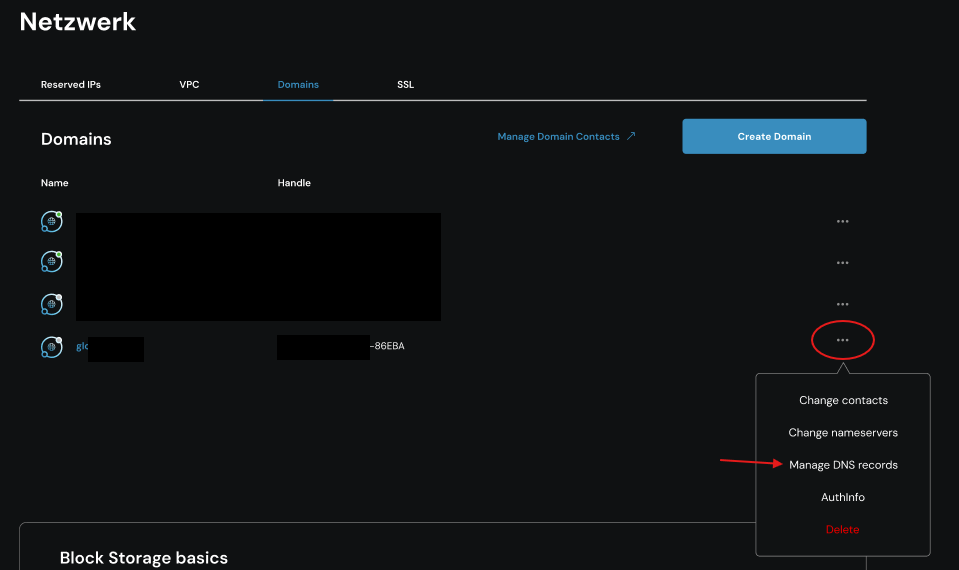
You can add, edit and delete DNS records for a domain on the Networking page of your ccloud³ instance. To do this, click on »Networking« in the navigation bar on the left. Then switch to the Domains section and, to the right of the domain for which you wish to manage a DNS record, click on the three ***. A small menu will open; click on »Manage DNS records«.
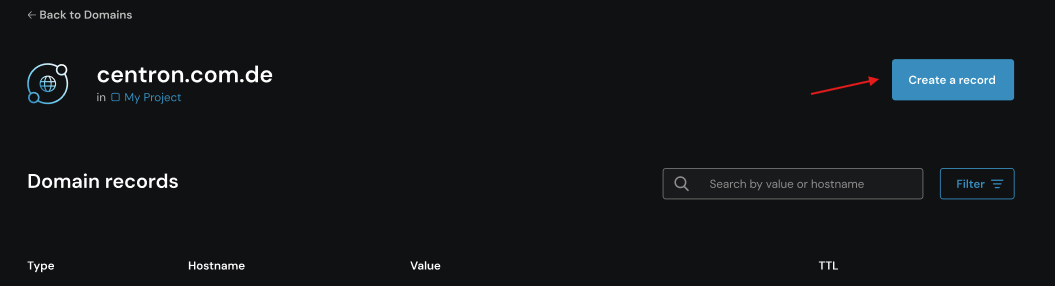
On the overview page that opens, you will see all the DNS records associated with the selected domain. You now also have the option to add new DNS records to the domain.
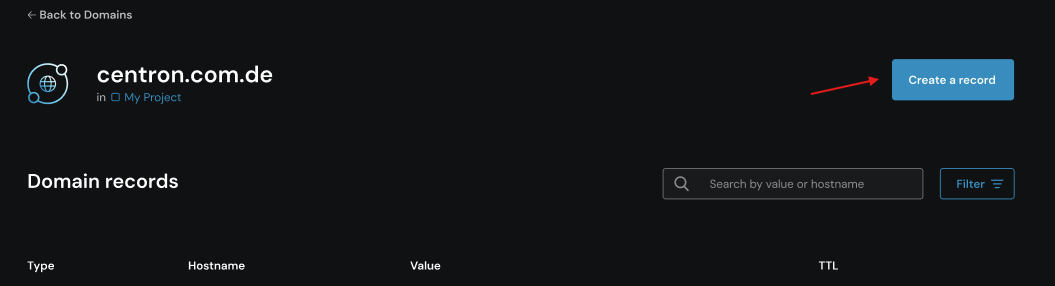
To create a new DNS record, click the ‘Create a record’ button.
In the next input screen, select the record type from the list under the heading, fill in the required fields for that record type, and click “Save” to complete the creation.
To amend or delete a DNS record at a later date, you must return to the overview page showing a domain’s existing DNS records. You can then edit or delete the relevant DNS record by clicking on the *** on the right-hand side.
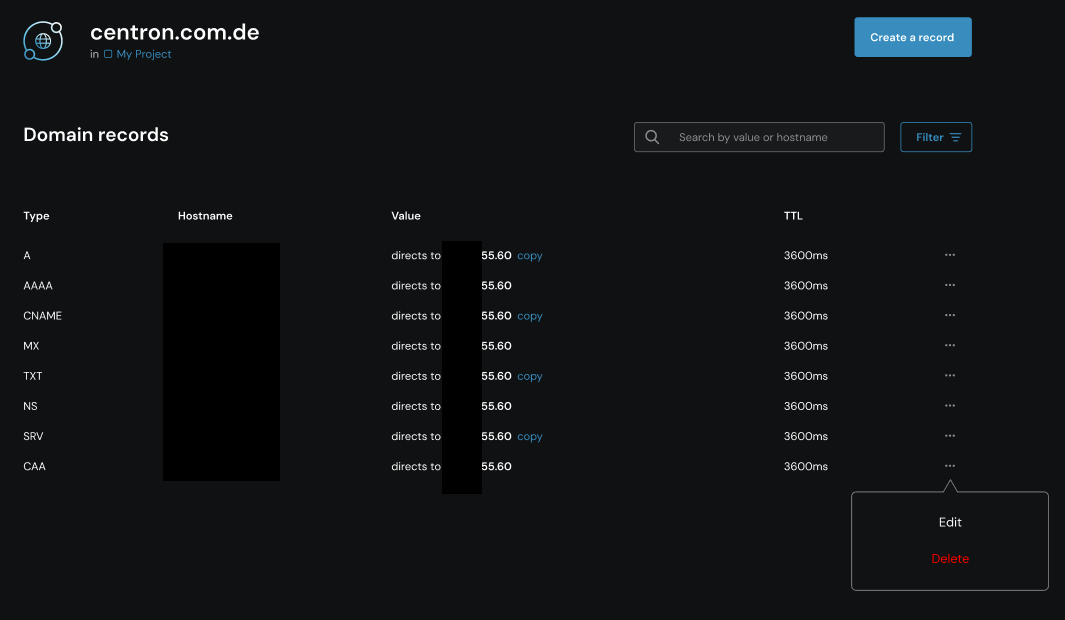
Click on »Edit entry« to change the values for this entry. To permanently delete the entry, click on »Delete« and then, in the confirmation window, click on »Delete entry«.
These entries will only take effect once you have updated your name servers with your domain registrar and these changes have propagated, which may take up to 48 hours.
- A records: Link an IPv4 address to a domain name.
- AAAA records: Link an IPv6 address to a domain name.
- CNAME records: Define an alias for an A record.
- MX records: Specify the mail servers responsible for your domain.
- TXT records: Are used to link a string of characters to a hostname.
- SPF records: Contain lists of email servers authorised to send emails on behalf of your domain.
- DKIM records: Contain public keys used to authenticate emails.
- NS records: Specify the name servers for a domain or subdomain.
- SRV records: Specify a hostname and port number for a specific service.
- CAA records: Specify which certification authorities are permitted to issue certificates for a domain.
- PTR (rDNS) records: Link a domain name to an IP address.
Managing and creating CAA records
Background information
CAA (Certificate Authority Authorisation) is a standard designed to prevent malicious actors from issuing unauthorised SSL/TLS certificates. CAA records specify which certification authorities (CAs) are permitted to issue certificates.
As with other types of DNS records, CAA records can apply to an entire domain (such as example.com) or to specific subdomains (such as assets.example.com). Similarly, the record’s lifetime can be set using a Time To Live (TTL) value in seconds.
CAA records have three additional fields: tags, values and flags.
- Tags are ASCII strings. Three tags are defined by the CAA standard. In addition, the CAA standard allows CAs to define their own tags. Each CAA record is limited to a single tag. The defined tags are:
issueauthorises a single CA to issue any type of certificate for a specific hostname.issuewildauthorises a single CA to issue only a wildcard certificate for a hostname.iodefdefines a URL to which a CA can report breaches of the policy.
- Values are strings associated with tags.
- For the
issueandissuewildtags, you should generally set the value to the domain name of the CA that is being granted permission by the entry, such as letsencrypt.org. - For
iodef, specify a URL to which policy violations should be reported.
- For the
Creating CAA records on centron
You can create a new CAA record in the ‘Networking’ section of your ccloud³ area. To do this, select the aforementioned section from the left-hand navigation bar.
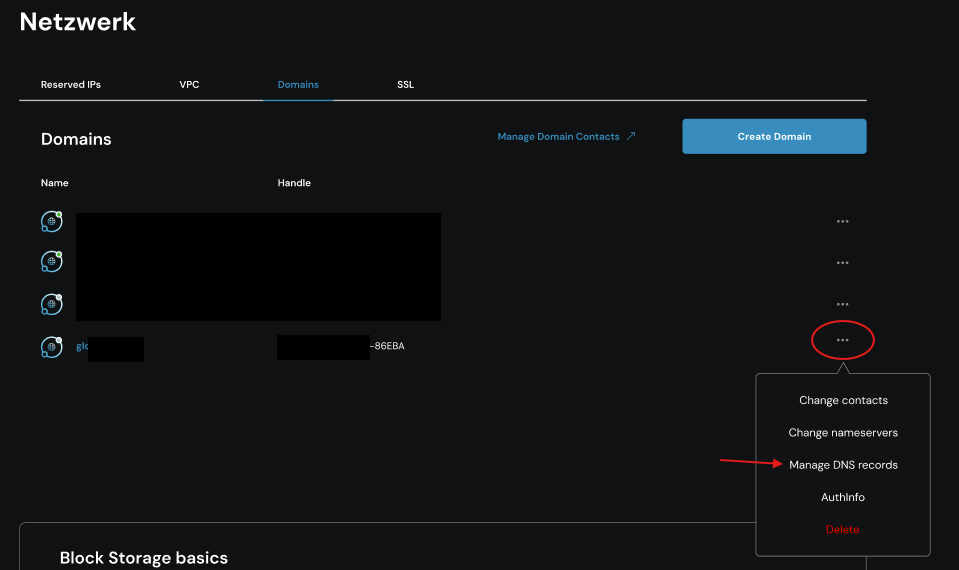
On the network page, click on the three dots to the right of the relevant domain. A drop-down menu will open; select ‘Manage DNS records’.
Now, within the domain section that opens, select the ‘Create entry’ button.
In the input form that appears, select ‘CAA’ from the options provided in the ‘Record Type’ field. Then fill in all other values, such as tags, flags, TTL, etc.
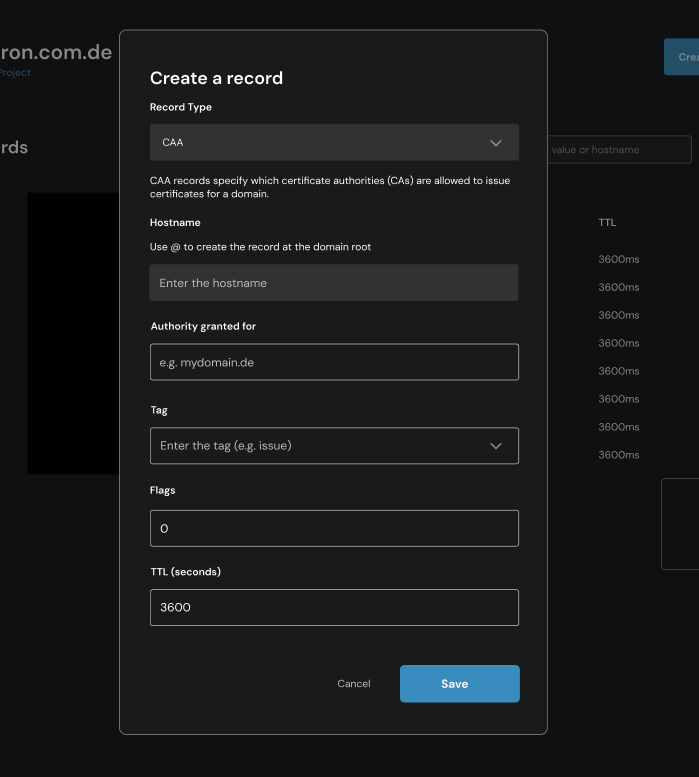
Once you have entered all the information, click Save to complete the process.